Add Microsoft 365 Organization
온프레미스 Exchange 서버를 사용하는 경우 Exchange 서버가 실행 중인 Windows 시스템에 Vinchin 에이전트를 설치해야 합니다. 에이전트 설치 방법은 Agent Deployment를 참조하세요.
Exchange Server Adding Preparations
Exchange 서버 관리 센터에 Administrator 계정으로 로그인하세요.
Admin Center에서 permissions > admin roles로 이동하여 + 버튼을 클릭하고 Administrator 계정에 ApplicationImpersonation 역할을 추가합니다.
Administrator 계정으로 Powershell을 열고 다음 명령을 실행하여 원격 관리를 활성화합니다:
Set-ExecutionPolicy RemoteSigned
Add Exchange Server
Exchange Server를 추가하려면 Vinchin 백업 서버 웹 콘솔을 열고 Resources > Infrastructure > Microsoft 365 페이지로 이동하여 Add 버튼을 클릭합니다.
Authentication Method 드롭다운 목록에서 Local Version을 선택합니다. Type은 기본적으로 Exchange Server로 설정되며, Next 버튼을 클릭합니다.
Authentication Parameters 드롭다운 목록에서 다음 설정을 구성합니다:
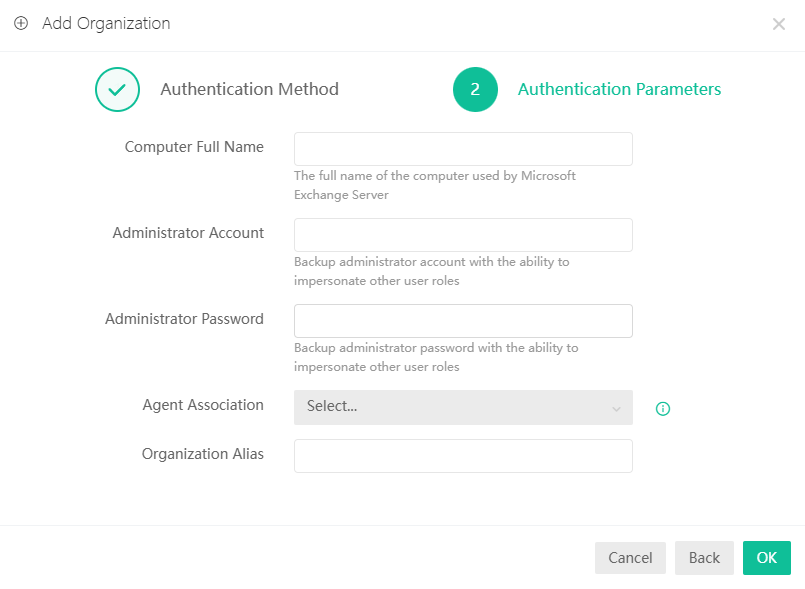
Computer Full Name에 Microsoft Exchange Server가 사용하는 컴퓨터의 전체 이름을 입력합니다.
Administrator Account에 다른 사용자 역할을 가장(impersonate)할 수 있는 권한을 가진 관리자 계정을 입력합니다.
Agent Association은 Exchange 서버에 설치된 Vinchin 에이전트이어야 합니다.
Preparation for adding Exchange Online
Exchange Online을 추가하려면 자동으로 새 Azure AD 애플리케이션을 등록하는 방법을 사용하는 것을 강력히 권장합니다. 준비가 완료되면 아래 방법 중 하나를 선택하여 Exchange Online을 추가할 수 있습니다:
Automatically Register with Traditional Authentication Protocols
Automatically Register with Certificate Authentication
기존 Azure AD를 사용하여 Exchange Online을 추가하려면 Vinchin 지원팀에 문의하세요.
Add Exchange Online
Automatically Register New Azure AD with Traditional Authentication Protocols
Vinchin 백업 서버 웹 콘솔을 열고 Resources > Infrastructure > Microsoft 365 페이지로 이동한 후 Add 버튼을 클릭합니다.
Authentication Method 드롭다운 목록에서 International Version을 선택합니다. Type은 기본적으로 Exchange Online으로 설정됩니다. Connection Method를 Automatically Register a New Azure AD Application으로, Authentication Method를 Access Microsoft 365 Based on Traditional Authentication Protocols로 선택한 후 Next 버튼을 클릭합니다.
Authentication Parameters 드롭다운 목록에서 Azure AD Application Name과 Organization Alias를 구성합니다.
OK 버튼을 클릭하면 인증 창이 팝업됩니다. 코드를 복사한 후 Please copy the code above and click here to authenticate를 클릭합니다. Vinchin이 Microsoft 365 인증 페이지를 열면 복사한 코드를 붙여넣고 가장(impersonation) 권한이 있는 계정으로 추가합니다. 검증이 완료되면 Exchange Online이 Vinchin 서버에 추가됩니다.
Automatically Register New Azure AD with Certificate Authentication
Vinchin 백업 서버 웹 콘솔을 열고 Resources > Infrastructure > Microsoft 365 페이지로 이동한 후 Add 버튼을 클릭합니다.
Authentication Method 드롭다운 목록에서 International Version을 선택합니다. Type은 기본적으로 Exchange Online으로 설정됩니다. Connection Method를 Automatically Register a New Azure AD Application으로, Authentication Method를 Access Microsoft 365 Based on Certificate Authentication으로 선택한 후 Next 버튼을 클릭합니다.
Authentication Parameters 드롭다운 목록에서 Azure AD Application Name과 Organization Alias를 구성합니다. Select Certificate Type을 Automatically Generate a New Self-Signed Certificate로 설정하면 Vinchin 서버가 사용 가능한 인증서를 자동으로 생성합니다. Import pfx Certificate를 선택하는 경우 기존 pfs 인증서 파일을 업로드하고 pfs 인증서 비밀번호를 입력해야 합니다.
OK 버튼을 클릭하면 인증 창이 팝업됩니다. 코드를 복사한 후 Please copy the code above and click here to authenticate를 클릭합니다. Vinchin이 Microsoft 365 인증 페이지를 열면 복사한 코드를 붙여넣고 가장(impersonation) 권한이 있는 계정으로 추가합니다. 검증이 완료되면 Exchange Online이 Vinchin 서버에 추가됩니다.